
Download Desktop Gadgets – free customizable Windows 7 tools
What are Desktop Gadgets and Why They Matter
Desktop Gadgets are lightweight, visual mini‑applications that sit on your Windows 7 desktop and provide quick access to information or simple utilities without taking up a full window. First introduced in Windows Vista, gadgets were initially tied to the Sidebar, limiting placement and customization. Microsoft listened to user feedback and completely redesigned the gadgets for Windows 7, turning them into independent, draggable widgets that can be positioned anywhere on the screen, resized, themed, and even set to stay on top of other windows.
In today’s fast‑paced computing environment, having a clock, weather forecast, CPU monitor, or a quick note‑taking widget right on the desktop saves clicks, reduces context switching, and keeps the most‑used information at a glance. The new Windows 7 Desktop Gadgets are also removable, meaning you can add or delete them without affecting system stability—a significant improvement over the earlier Vista implementation. Moreover, each gadget can be personalized with custom icons, colors, and opacity settings, giving you full control over the look and feel of your workspace.
Beyond aesthetics, these gadgets are built on a secure, sandboxed framework that limits their access to system resources, reducing the risk of malware infection. Microsoft also introduced a simple “Always on top” option, allowing users to pin essential widgets—like a world clock or a stock ticker—above other applications. The transparency slider lets you adjust opacity so the gadget blends seamlessly with your desktop background, making it both functional and visually pleasing.
Whether you’re a power user who monitors CPU usage, a remote worker who needs a world‑time converter, or simply someone who enjoys a stylish desktop, the revamped Windows 7 Desktop Gadgets deliver a versatile, free, and secure way to enhance productivity without the overhead of full‑blown applications.
Key Features of Windows 7 Desktop Gadgets
- Independent Placement: Unlike the old Sidebar, gadgets can be freely moved anywhere on the desktop.
- Customizable Appearance: Change icons, colors, and opacity to match your personal theme.
- Always‑On‑Top Option: Pin critical widgets above other windows for instant visibility.
- Easy Removal & Installation: Add or delete gadgets without rebooting or affecting system stability.
- Built‑In Security Sandbox: Gadgets run in a limited environment to protect against malicious code.
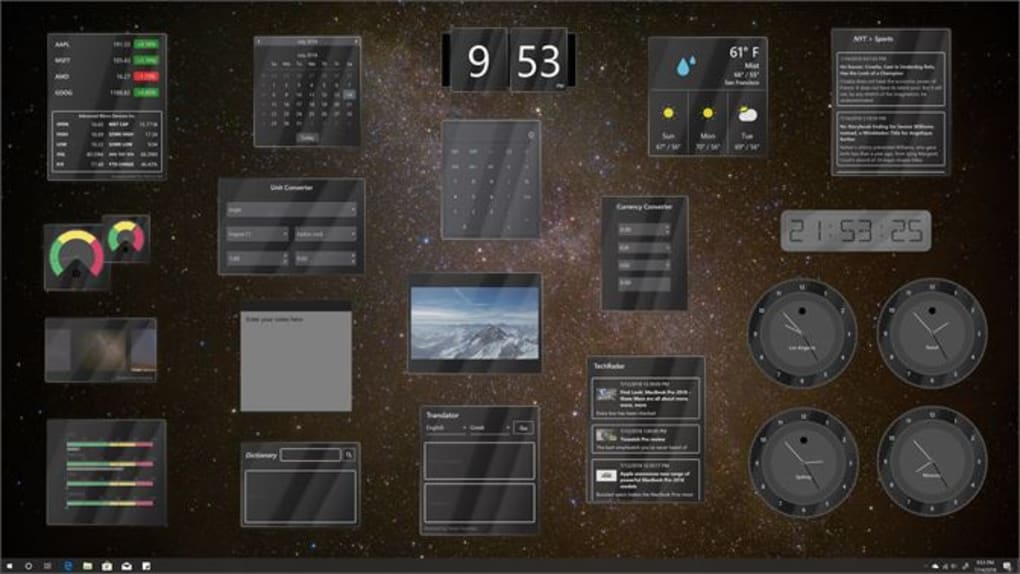
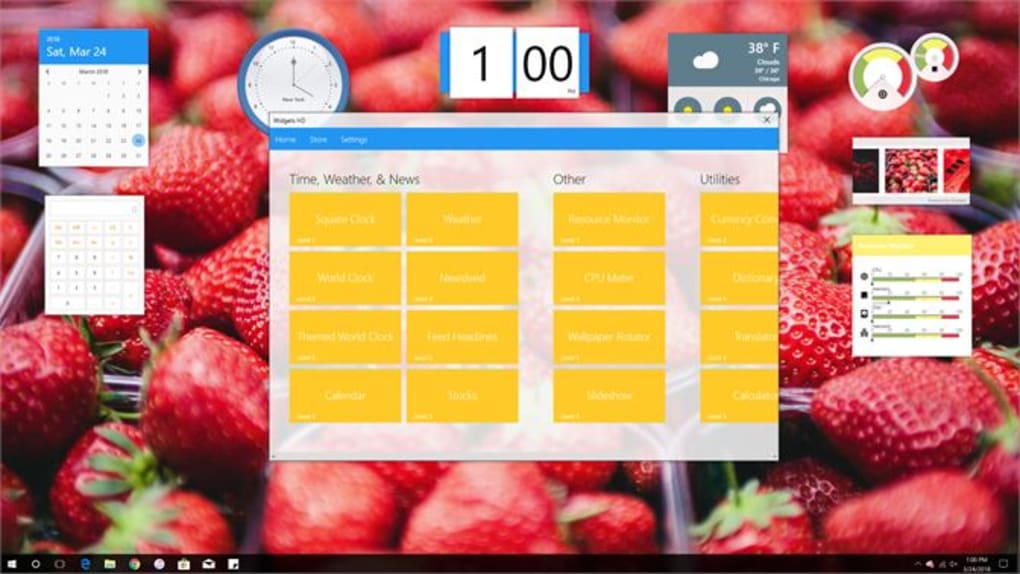
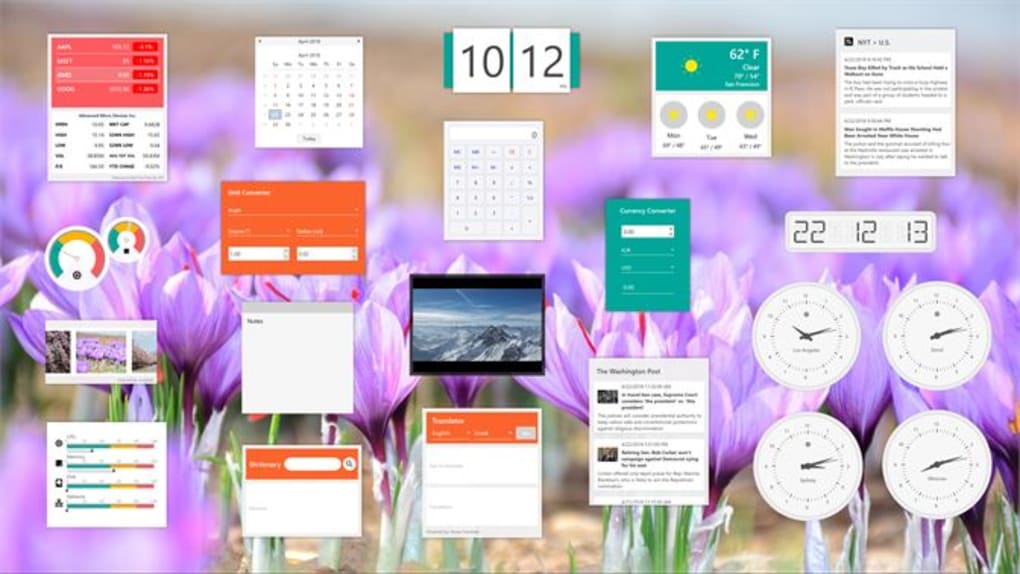
- Variety of Utilities: Includes clocks, calendars, weather, system monitors, RSS feeds, and more.
- Low Resource Consumption: Designed to use minimal CPU and RAM, keeping your PC fast.
- Transparency Controls: Adjust opacity to make gadgets blend with your wallpaper.
- Support for Third‑Party Packs: Install collections like 8GadgetPack or Snow Standalone Gadgets for extended functionality.
- Automatic Updates: Microsoft’s update mechanism can push bug fixes and security patches.
The feature set reflects Microsoft’s focus on flexibility and user control. By allowing gadgets to float freely, users can design a personalized dashboard that mirrors their workflow. For instance, a designer might keep a color‑picker gadget next to the drawing canvas, while a developer could place a CPU‑usage monitor near the code editor. The modular nature also encourages third‑party developers to create niche gadgets, expanding the ecosystem far beyond the default set.
Security has been a common concern with the original Vista gadgets, but Windows 7’s sandbox approach mitigates many risks. Each gadget runs with restricted permissions, preventing it from altering system files or installing unwanted software. This design choice, combined with Microsoft’s regular update channel, ensures a safer experience for users who love to personalize their desktops.
Overall, the feature list balances aesthetic customization with functional utility, making Desktop Gadgets a compelling addition for anyone looking to streamline daily tasks.
Installation, Configuration, and Daily Usage
Getting started with Desktop Gadgets on Windows 7 is straightforward. Follow these steps to download, install, and personalize your gadget collection:
- Enable Gadgets (if disabled): Open Control Panel > Appearance and Personalization > Desktop Gadgets. Ensure the “Allow gadgets on desktop” option is checked.
- Download a Gadget Pack: Visit a trusted source such as 8GadgetPack or the Microsoft Store. Most packs are provided as
.ziparchives. - Extract the Files: Right‑click the downloaded archive and select “Extract All…”. Place the resulting folder in
C:\Program Files\Desktop Gadgets(or any directory you prefer). - Install the Gadgets: Double‑click each
.gadgetfile. A confirmation dialog will appear—click “Install”. Windows will add the gadget to the sidebar menu. - Add Gadgets to the Desktop: Right‑click an empty area of the desktop, choose “Gadgets”, and click the desired widget. It will appear where you clicked.
- Customize Appearance: Right‑click the gadget, select “Options” or “Settings”. Here you can change colors, icons, time format, and opacity. Use the “Always on top” checkbox to pin it above other windows.
- Reposition & Resize: Drag the gadget to a new location. Some gadgets support resizing via a small handle at the corner.
- Remove Unwanted Gadgets: Right‑click the gadget and choose “Close”. To uninstall permanently, delete the gadget folder from your system.
Daily usage is intuitive: each gadget updates automatically (e.g., weather updates every hour). For data‑intensive gadgets like CPU monitors, you can adjust the refresh rate in the settings to balance performance and information freshness. If you notice a gadget becoming unresponsive, simply close and reopen it—most issues resolve without a full system reboot.
Power users often create a “desktop dashboard” by grouping related gadgets together: a calendar next to a task list, a stock ticker beside a news feed, and a system monitor in a corner. This layout mimics a command‑center and can dramatically cut down the time spent opening separate applications.
Compatibility, Pros & Cons, and Frequently Asked Questions
Desktop Gadgets are natively built for Windows 7 (both 32‑bit and 64‑bit). They also run on Windows 8/8.1 when the legacy gadget platform is enabled, and on Windows 10 with third‑party packs like 8GadgetPack that re‑introduce the gadget runtime. Mobile platforms (Android, iOS) are not supported directly, though similar widget ecosystems exist on those systems.
Pros
- Free and lightweight—no additional cost or heavy installation.
- Highly customizable—icons, colors, opacity, and placement.
- Low system impact—uses minimal CPU and RAM.
- Secure sandbox environment reduces malware risk.
- Wide variety of third‑party gadgets expands functionality.
Cons
- Native support discontinued after Windows 7; requires third‑party packs on newer OS.
- Limited to basic utilities; not a replacement for full‑featured applications.
- Potential compatibility issues with high‑DPI displays if gadgets are not scaled.
- Occasional UI glitches when moving gadgets across multiple monitors.
FAQ – Desktop Gadgets for Windows 7
-
Are Desktop Gadgets safe to use on Windows 7?
Yes. Microsoft redesigned the gadget platform with a sandbox that limits file‑system access. However, always download gadgets from reputable sources to avoid malicious code.
-
Can I use the same gadgets on Windows 10?
Native support was removed after Windows 7, but third‑party packs like 8GadgetPack re‑enable the runtime, allowing most gadgets to work on Windows 10.
-
How do I change the opacity of a gadget?
Right‑click the gadget, select “Options” or “Settings”, then adjust the “Opacity” slider. The change is applied instantly.
-
Do gadgets consume a lot of battery on laptops?
Because gadgets are lightweight, their impact on battery life is minimal. Only data‑intensive gadgets (e.g., live RSS feeds) may cause a slight increase in power usage.
-
Is there a way to backup my gadget layout?
Yes. Gadget settings are stored in the
%AppData%\Microsoft\Windows Sidebar\Gadgetsfolder. Copy this folder to a backup location and restore it after a clean install.
Review Summary
Rating: ★★★★☆ (4/5)
Pros: Free, customizable, low resource usage, secure sandbox.
Cons: No native support beyond Windows 7, limited advanced functionality.
Conclusion & Call to Action
Desktop Gadgets revive the classic Windows 7 experience by delivering quick, glanceable information right on your desktop. Their redesign—independent placement, custom icons, opacity controls, and sandboxed security—addresses the shortcomings of the original Vista sidebar and provides a modern, lightweight alternative to bulky applications. While native support ends after Windows 7, third‑party solutions like 8GadgetPack keep the ecosystem alive for Windows 8, 8.1, and 10 users.
If you value a tidy workspace, love visual customization, and need fast access to tools like clocks, weather, or system monitors, Desktop Gadgets are an excellent free addition to your PC. Download the latest gadget pack today, customize your desktop to match your workflow, and enjoy a more productive, visually appealing computing environment.
Download Desktop Gadgets now and start building a personalized desktop dashboard in minutes.







